


Today at work I had to edit a PDF that was block but I needed to change a small piece of info, so we could send it back to a client. I had no idea how to do it,so I read a bit and tried options like Calligra, pdfEdit, Okular and flpsed; however, the obvious way ended up being the right and easiest one… Inkscape.[cq_vc_separator title=”1″ bgcolor=”#45c9e0″ fontcolor=”#ffffff” bordercolor=”#ffffff” fontsize=”3em”]First we have to open our PDF with Inkscape, making sure the “Import text as text” option is selected. If we don’t select this, Inkscape will convert the text to vectors, which will make a simple task just a nightmare.[cq_vc_hotspot image=”5718″ position=”33.83977900552486%|41.04761904761905%,5.1651703499079185%|28.38095238095238%,38.184852670349905%|0.7619047619047619%,45.902394106814%|77.14285714285715%,” circlecolor=”#ffffff”][hotspotitem]
Import text as text
[/hotspotitem]
[hotspotitem]
Select the page to edit.
[/hotspotitem]
[hotspotitem]
Select existent fonts.
[/hotspotitem]
[hotspotitem]
Accept / Import.
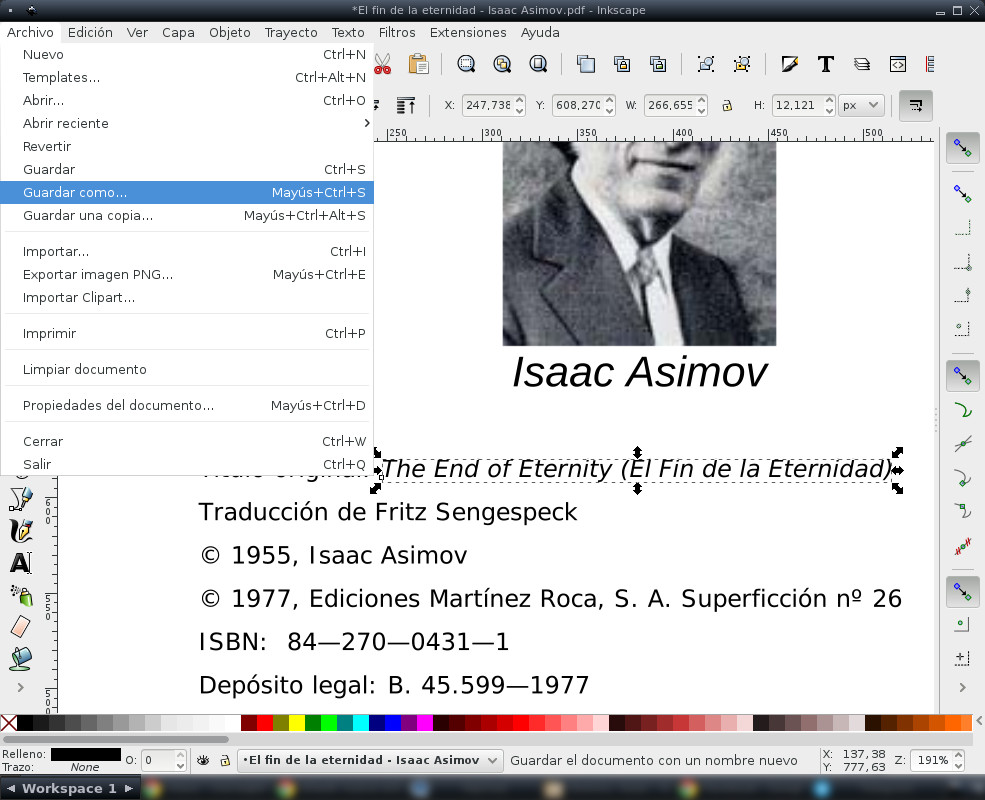
[/hotspotitem][/cq_vc_hotspot][cq_vc_separator title=”2″ bgcolor=”#45c9e0″ fontcolor=”#ffffff” bordercolor=”#ffffff” fontsize=”3em”]Once you import it, our PDF page will show as an Inkscape one, where each image will be embedded (if you select that option) and each text line will be an editable box. I haven’t search for editing options for files that have more than one page, however, if I have to, be sure I will do another article.[cq_vc_fluidbox fluidimage=”5719″][/cq_vc_fluidbox][cq_vc_separator title=”3″ bgcolor=”#45c9e0″ fontcolor=”#ffffff” bordercolor=”#ffffff” fontsize=”3em”]To edit this file, just double-click over the desired element and this will activate the edit mode. Once you have made the changes just save the file. I recommend to save it as a new file just in case you need it, so keep the original as a backup.[cq_vc_hotspot image=”5721″ position=”54.57589285714286%|60.476190476190474%,20.830933179723502%|13.142857142857142%,” circlecolor=”#ffffff”][hotspotitem]
Double click to edit the selection.
[/hotspotitem]
[hotspotitem]
Save as
[/hotspotitem][/cq_vc_hotspot]And that’s it, remember to save as PDF again, despite the good about Inkscape is that once your page is already imported, you can save it in any format that you consider useful.
As you can see, my blog has a new style, I hope that it brings new energies to keep writing everything I learn on my way. Thank you for keep visiting the blog even if I have been offline for some months!
Quizás no automaticamente, pero todo depende de que quieres eliminar. Si la sección esta en la misma posición en todas las paginas creo que sería mucho más fácil que si es un elemento que alterna su ubicación. Tienes mas datos o ejemplos al respecto?
¿Hay alguna opción de hacer esto de forma automática eliminando la misma imagen de todas las páginas del PDF?
Con inkscape puedes crear paginas de pdf que luego puedes unir con herramientas tipo pdf-merge o pdf-mod (la 2da es la que uso habitualmente)
Hola como va? Quisiera saber si con inkscape se puede crear un PDF editable para enviar a clientes. Si es así, si alguien puede darme la solución le estaré muy agradecido!
Gracias por el tutorial y mejor todavia el titulo del llibro
Gracias Tatica!
También funciona de forma parecida al abrirlo en el Draw de LibreOffice. Los textos aparecen en cajas que pueden ser editados.
Excelente Tatica, de mucha utilidad, estoy seguro que muchos hemos pasado por esto en algun momento…! +1 jejeje